
Turn an idea into a task
Preparing a product launch involves more than making a picture. You may need to work away from your desk, explain visual references, refine a task in progress and keep design discussions separate from publishing copy.
CoArtDex connects your instructions, online computers and supported creative software in one workspace. These 12 examples follow a task from its first request to reviewing the results: you set the direction, AI helps carry out the work, and you check what to do next.
01 / Start work away from your desk
Your computer can stay at your desk while you start a task from your phone. Open the workspace on your phone and select your connected, online computer under the working location.
For example: “Render a product image for me.” With the required software connected, AI can work on the task through that application. Return to the workspace to check progress and available previews, then give your next instruction.
Before you start: keep the target computer online and connect the required software. Available actions depend on the connected environment.

02 / Queue the next idea
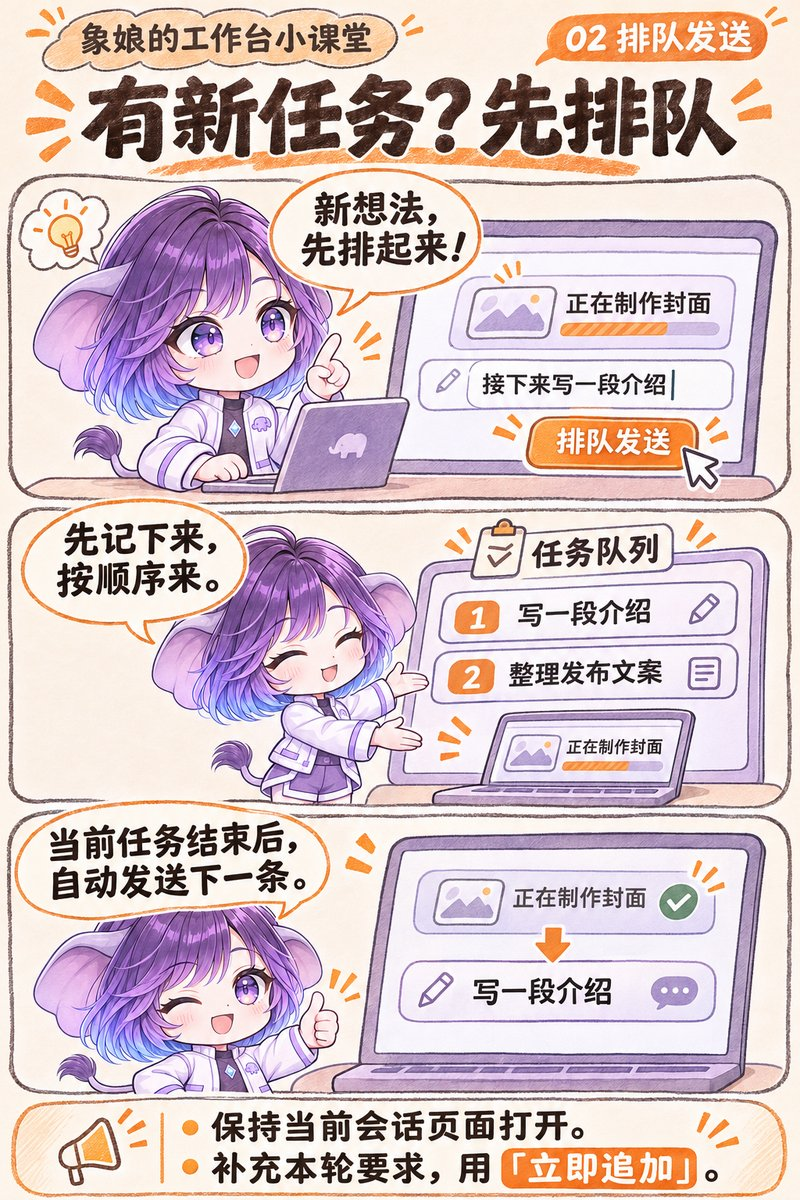
A new idea does not have to wait until the current task finishes. While AI is making a cover, you can queue follow-up requests such as writing an introduction or preparing publishing copy.
After the current task ends, the next message in the queue is sent automatically. This lets you plan the next steps while keeping the conversation moving in order.
Keep the current conversation page open while using the queue. To add requirements to the task already in progress, use “Append now” (立即追加) instead.
03 / Bring existing context with @
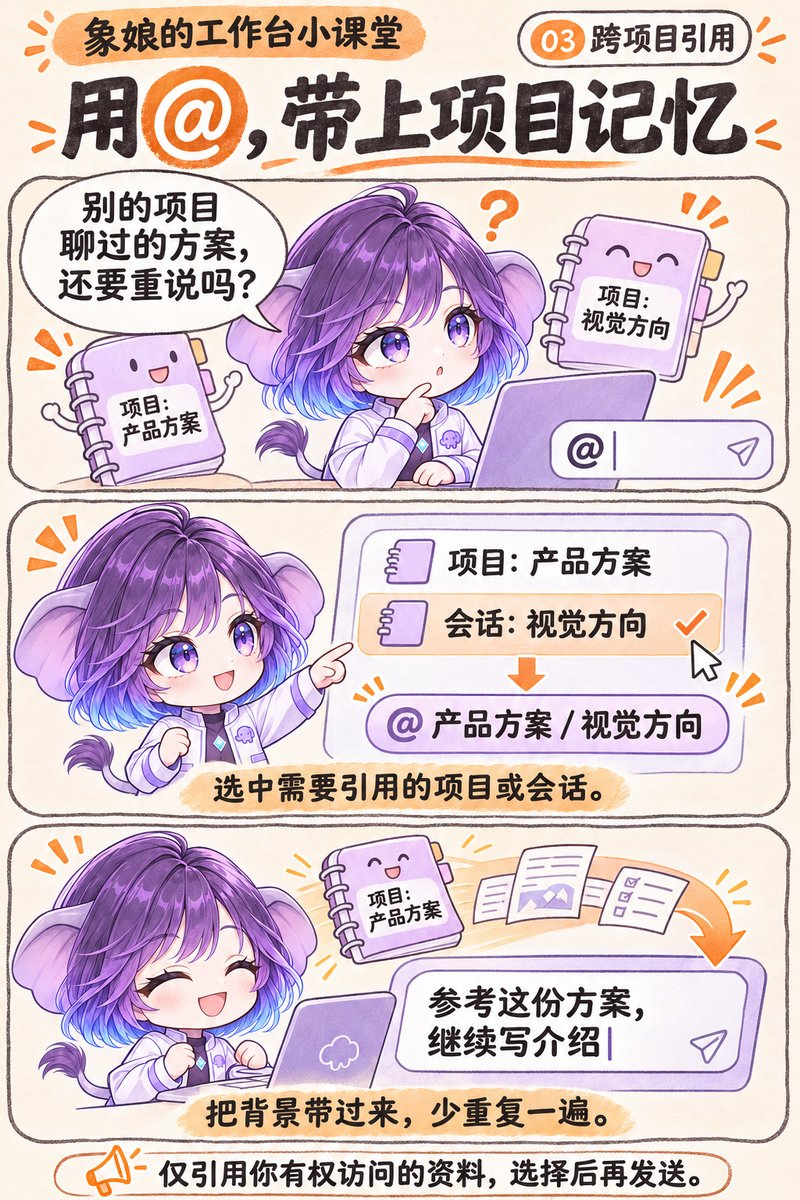
Your product plan may live in one project while its introduction is being written in another conversation. Use @ in the input box to select a project or conversation you are allowed to access.
Then add your request, such as: “Use this plan as a reference and continue writing the product introduction.” Reusing the chosen context reduces repeated explanations and helps carry an established direction into the next task.
Choose the intended project or conversation, then send your request. Reference only material you are permitted to access.
04 / Refine the task while it runs
A task is running when you notice a detail to change. While AI is making a poster, for example, you can add: “Make the title orange and keep the main image as it is.”
Use “Append now” (立即追加) to add the requirement to the current task. For a separate follow-up task, such as writing publishing copy after the poster, use the queue.
Use “Append now” for this task; queue the next one. How the change is handled depends on the task’s progress.

05 / Identify each reference by its number
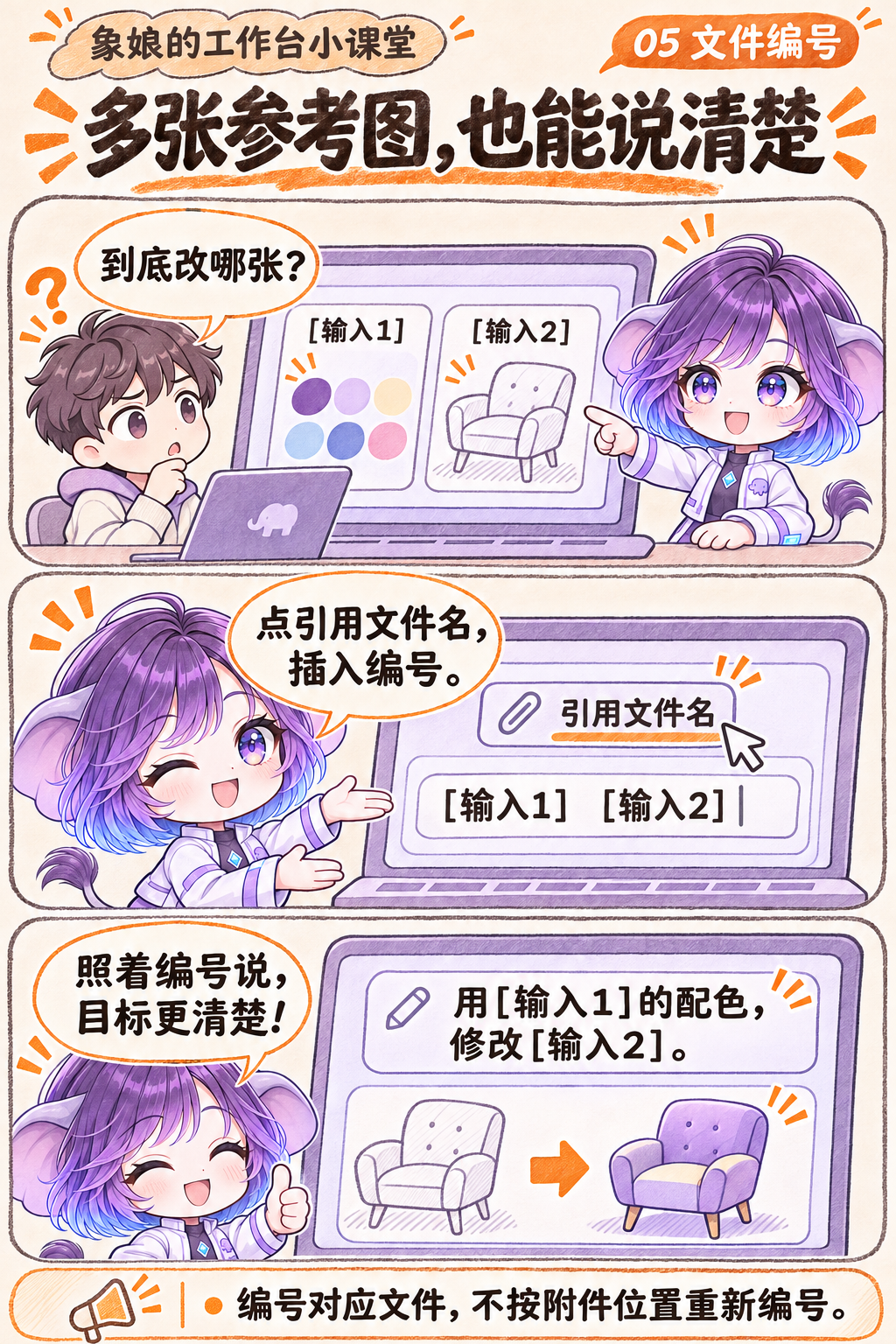
When several references are attached, “use this color on that model” can be ambiguous. Click a referenced file’s name to insert its label, such as [输入1] or [输入2], into your message.
For example: “Use the palette from [输入1] to revise the model in [输入2].” Give each reference a clear purpose, such as color, composition, shape or supporting information.
Reference numbers identify fixed files. Keep their assigned labels even if the attachment order changes.
06 / Mark the exact area to change
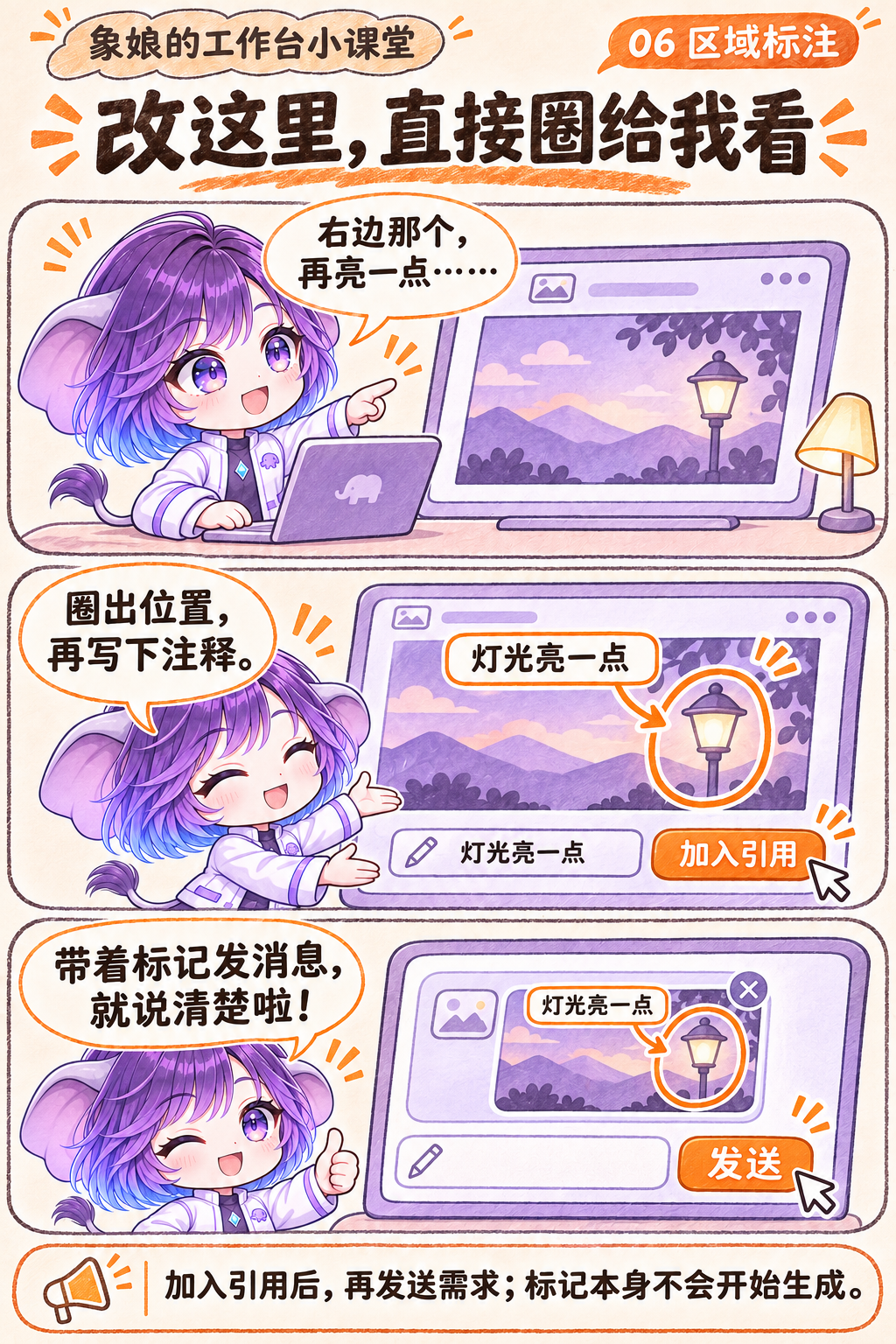
A precise location is often easier to show than to describe. Mark the area in a reference image and add a short note such as “Brighten this lamp.”
Add the annotated image to your references, then send your task. For a product image, you might mark the label and ask for more readable text while retaining the composition.
Add the marked image to your references and send the request. An annotation alone does not start generation.
07 / Make room to write on a small screen
Reference cards can take up much of a phone screen. Collapse them while writing a longer message to make more room for checking and editing your instruction.
The selected material stays attached to the message. Expand the references to check your selection, and remove a file if it is no longer needed for the request.
Collapsing changes the display. Removing a file cancels its reference.

08 / Separate discussions within one project
A launch project may include visual design, product copy and publishing plans. Create separate conversations in the same project so each discussion has a clear topic.
For example, use “Design discussion” and “Copy preparation” as two conversations. Return to the appropriate one to continue its discussion while working with the shared project files.
Conversations keep separate chat histories; files in the project are shared.

09 / Return to an unfinished message
You may be drafting a request when you need to check another discussion. Switch conversations on the current page, then return to continue the text and references you were preparing.
Begin a poster request in the design conversation, check the agreed product positioning in the copy conversation, then return to finish the request before sending it.
Draft preservation applies when switching conversations within the current page. Save important drafts separately before refreshing or closing it.

10 / Choose the source and the output location
Your source files may be on a connected computer while the report needs to be delivered to the cloud project. Select the source computer and an authorized material directory, then state where the result should be saved.
To use a computer as a material source for cloud work, enable “Provide materials for the cloud” (为云端提供资料). Try: “Read the product information in this directory and save the summary report to this cloud project.”
Keep the source computer online, select an accessible material directory and state the output location explicitly.

11 / Open results from a connected computer
After a task saves its result on a connected computer, return to the workspace to inspect it. Select the correct source computer and working directory, then open the result’s file link.
For supported formats, preview the file in your browser or download it. Check a report or another deliverable from your phone before deciding whether it needs another revision.
Keep the source computer online. Preview formats and accessible files depend on support and authorized scope.

12 / Archive a conversation and find it later
Completed discussions can make the conversation list harder to scan. Archive conversations you are not currently using so the active topics are easier to find.
When you need a discussion again, find it in the archive and restore it. Keep a completed launch-copy discussion there until the next campaign needs the earlier wording.
Archiving preserves chat history. It does not delete the conversation or stop a task already running.

Start with one concrete goal
For a product launch, start a render from your phone, queue the introduction and publishing copy, then append a design revision to the current task. Use @ to bring in the plan, file numbers to identify references and a marked image to explain a precise change.
Keep design and copy in separate project conversations, choose where the finished work should be saved, and open available previews to review it. Begin with one concrete task and use whichever features make its next step clearer.